Archive for the ‘Uncategorized’ Category

A few spots left in training.

Posted on: March 6th, 2014 No Comments

Tomorrow I am doing ePublisher 101 again, and while the registration ends 2 days, you can still sign up by contacting Jack Newman about purchasing this. This training is ideal for people just getting into ePublisher, but also for experienced users who don’t really understand why you should use ePublsher Express, as well as other questions such as: Why the heck do you need the Reports? Why is there a .base folder in my Stationery directory? Who is the best audience for Stationery? Come find out tomorrow! The training comes with a manual and exercises, but is also informal enough to allow for questions, if you have any. Hope to see you there!

Can’t make it tomorrow? You can still sign up through our Eventbrite page to register for the session on the 31st

I am doing ePublisher 101 training this Friday!

Posted on: February 3rd, 2014 No Comments

I will be taking over the training for the introductory ePublisher classes. You can find out  more information here:

http://www.webworks.com/eSchool/Courses/

This course is ideal for those who are just starting out with ePublisher and want to get into the ins and outs of using the Designer interface. I will go over our workflow as well as reasons to use Express and Stationery. Registration is limited to 15 participants so be sure to sign up before the class gets filled!  Hope to “see” you Friday. 🙂


ePublisher for Newbies – Adding Company Information

Posted on: November 19th, 2013 2 Comments

One of the easiest things in ePublisher to modify is the company information. In fact, you can do it with just four steps in Reverb:

  1. Go to the the Reverb target that you have created and then go to Target -> Target Settings
  2. Expand the Company Information pane and then click the in the Value column to add the values* you want
  3. Once you are satisfied with the information, click OK to go back to the ePublisher UI
  4. Click the three gears to generate the output and then you will see the changes

If you are working with WebWorks Help 5.0 for example, and you want to specify further the top or bottom alignment, we can do this by using the Style Designer’s Page Styles

  1. Navigate to the Style Designer by clicking the icon or using the Menu bar and then navigate to the Page Styles in the middle column
  2. Click on the Default in the list and then click on the Options Pane toward the right
  3. Let’s choose a Top/Right alignment, so select Enabled for Company info displayed at top and Right for Company info top alignment for the options
  4. Click the triple gears to generate all and notice then notice changes from clicking the output Output Explorer**

There you go, easy as pie. Please comment if there are any specific topics you would like to be simplified in the Newbies series.

*If you want to add a logo, you will need to have it placed in the Files directory. Go to View -> User Files to have it placed in the Windows Explorer so it can be easily accessed by our generation process

**You may have it already configured to view the output automatically, and that is cool, too!

ePublisher Tips and Tricks – Reverb URL Search

Posted on: October 23rd, 2013 No Comments

I am taking a break from my Newbies series this week to present a cool feature of which you may or may not be aware. Drumroll please: using the URL bar to search Reverb. It is simple, you type in your URL, in this case, I am going to to use our own help to do this, and we are going to search for the term “othermeta” for our DITA friends:

To search this term, you can type in the following:

http://www.webworks.com/Documentation/Reverb/#search/othermeta

When you hit return, it will bring up the Google search results. (If you are using the Client-side search or IIS, it will show those results). For testing on your own help that you have generated, please keep in mind that this will need to be deployed to a web server or using IIS to work. If you do not have your http://localhost yet set up, you can actually use our “View Output” button to display a preview in your browser that will let you view the URL:

http://localhost:9292/YourTargetName/

and from there you can use the #search/yoursearch term feature as addressed above to search the help in this manner. Let me know in the comments what your experiences using this functionality have been.

ePublisher for Newbies – Setting TOC levels

Posted on: October 14th, 2013 No Comments

Part of any great help system is a Table of Contents (TOC) to help the user navigate through the topics. In this exercise we are going to use the project that we created from the last lesson, but add some navigability to the Reverb output by adding levels to our output. Let’s begin!

1.  Open up the WEP project that you previously created by using the Windows Explorer when you go to File -> Open, or by using the Recent Projects panel in the Start Page

2. Click on the first FM file again, right click and then click Display Preview

3. Click on the very first heading in the preview window and then the Style Designer will appear in the bottom as shown:Table_of_contents_level4. You will see that the level is automatically set to Auto-TOC* but for the purposes of this demonstration we are setting the Table of Contents level to 1

5. Notice again that when when change something in the Options pane, that this also makes the paragraph style bold to indicate that a change has been made

6. Repeat the steps to give Heading 1 a level of 2 and Heading 2 a level of 3

7. Save the project and click the generate all 3 gears located on the toolbar

8. Now your output should look something like this:

Toc_with_chapter_numbering

9. It looks good except that because this is a web output we don’t really need to have the chapter numbering. Never fear, ePublisher has a way to fix that as well.

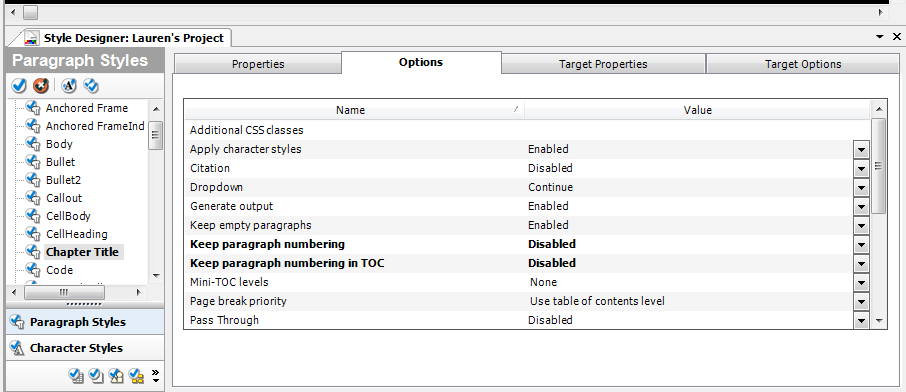
10. Going back to the Options panel for each of the Paragraph Styles in the Style Designer locate the Keep paragraph numbering and the Keep paragraph numbering in TOC dropdowns

disable_chapter_numbering

11. We are going to set both of those to Disabled and we are going to repeat this for all 3 paragraph styles we modified

12. Save and generate and now the output should look like this:

no_numbering_in_TOC

As you work more with your documents, you will need to do the Display preview less as you will already know what you have set in the documents, and then you can construct your Designer projects and then base the stationery on that.  Following lessons will include different aspects of generating online help that will be useful for you in getting all that you can out of ePublisher.  Feel free to make suggestions via the comments on anything as a new user that would be helpful to learn and I will take them into consideration in creating the next tutorial. Please note that advanced customization topics such as XSL or Javascript will be best handled through the Study Hall sessions. We also have introductory topics with our Show Me sessions.

*If you are wanting more in-depth coverage of what the Auto-TOC entails, please refer to the documentation link or join one of our training sessions

ePublisher for Newbies – Starting from Scratch

Posted on: October 3rd, 2013 No Comments

Our documentation provides a lot of good information for those of you who have been working with ePublisher and want to get specific information about a topic, but admittedly it can be a bit overwhelming, so I thought I would try to distill this information for a quick-start guide in using ePublisher. By no means is this a comprehensive guide, for that we offer training.

Lesson 1 – Creating and Modifying a Designer Project

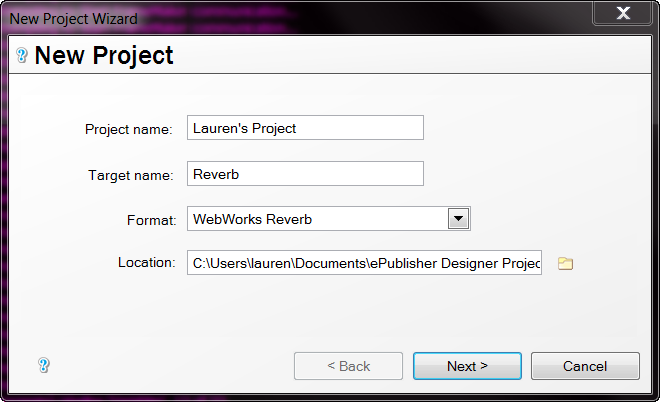
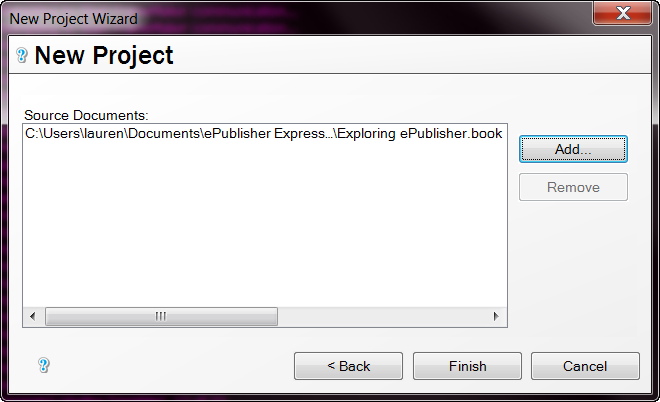
1. Go to File -> New. This will bring up the following window:
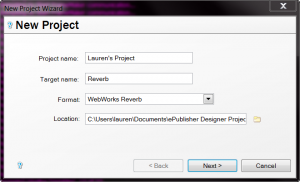
New_Project_Wizard

2. You can chose whatever name you want for the Project and the Target (covered more in depth by training). This window also lets you choose what kind of Format you want to use, for the purposes of this demonstration, we are going to use WebWorks Reverb (which, by the way is the output that our documentation uses). Click Next

3. Click Add put source files for this document. For the purposes of this demonstration, we are going to use FrameMaker:
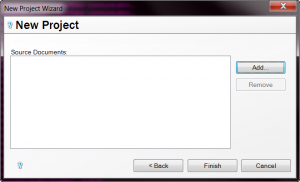
Add_Source_Files

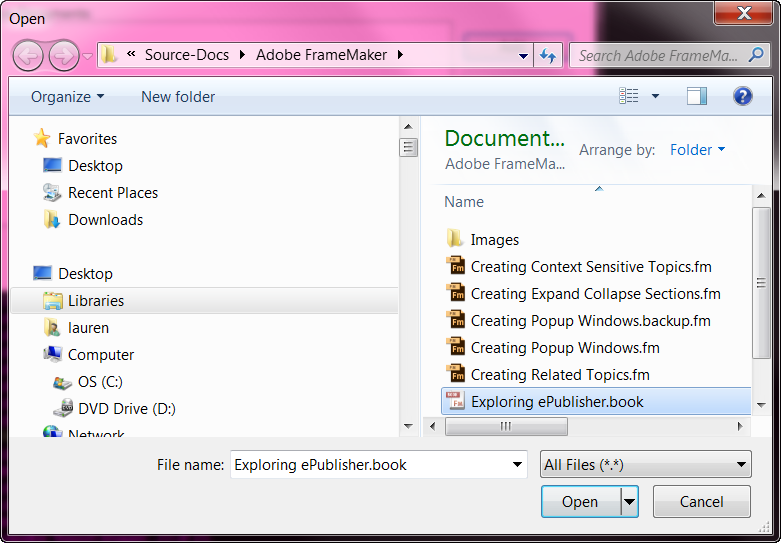
3. In the next window, we are going to navigate to the following directory:


C:\Users\[yourusername]\Documents\ePublisher Express Projects\Source\Adobe Framemaker
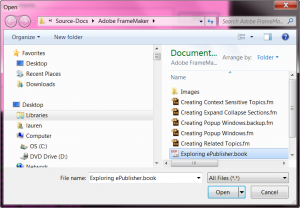
Selecting_FrameMaker_book

4. We are going to add the book file located in this folder. Click the Open button to add this file, and then you are going to click the Finish button on the next screen.
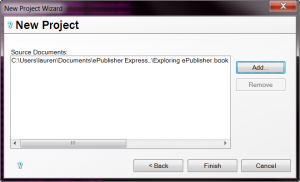
Added_Now_Click_Finish

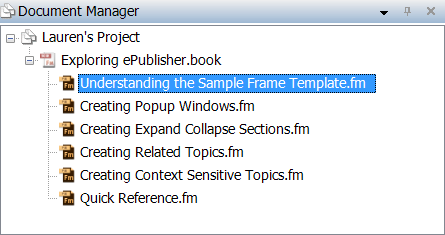
5. Now you will see something like this in the Document Manager:
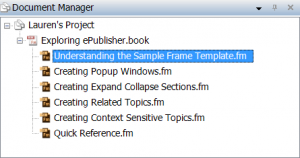
Document_Manager

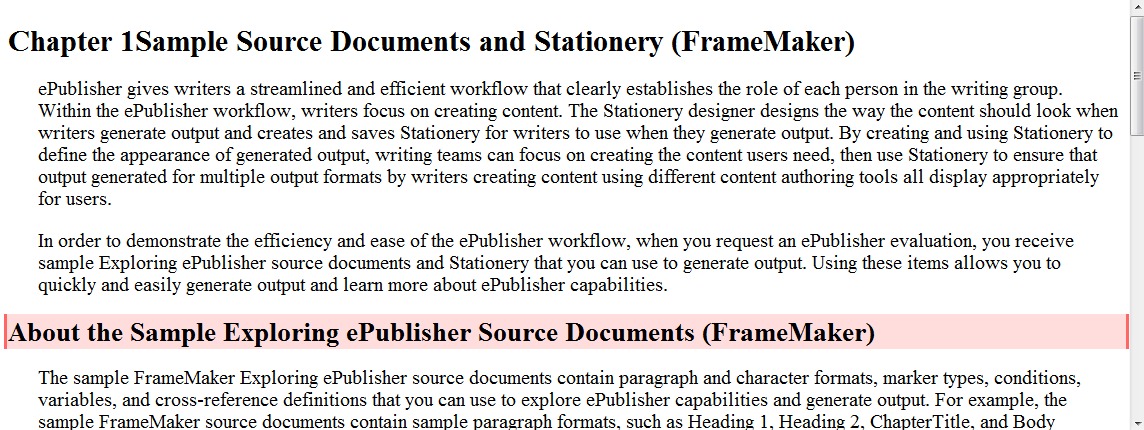
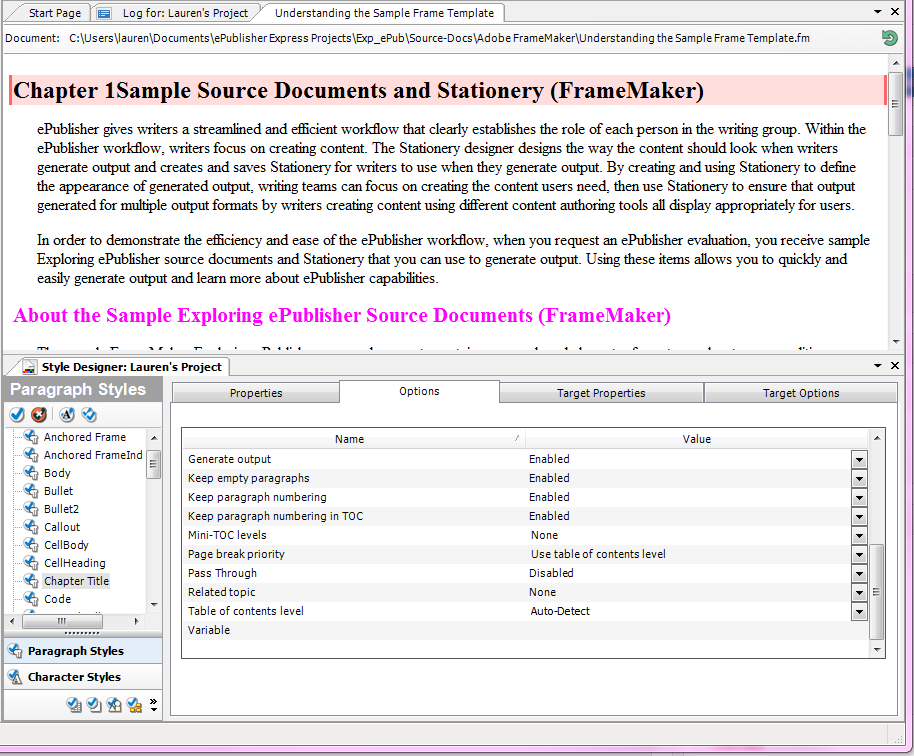
6. With the first document selected, as you see in the above image,  Go to Project -> Display Preview and you will select the “Heading_1” style by clicking “About the Sample Exploring ePublisher Source Documents (FrameMaker)” paragraph style. Again more in depth coverage of this is done in training:
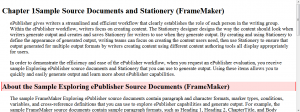
Selecting_Heading_1

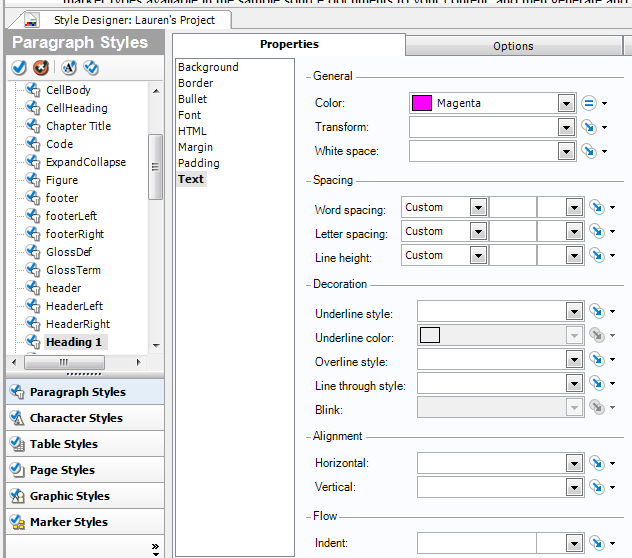
7. We are going to change the color of this heading by going to Text -> Color in the Style Designer pictured below Notice that now the Text heading is bolded, this indicates that we have made a change to something in the Style Designer:
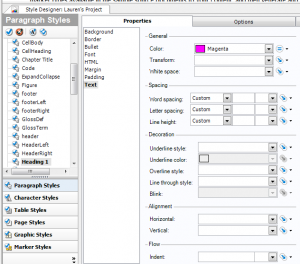
Style_Designer

8. You can actually see the changes by clicking the green Refresh Preview button on the top corner:
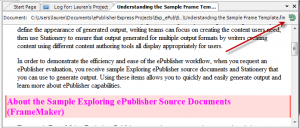
Refresh Preview

9. For the purposes of this small demonstration, we are going to generate with just heading 1’s changed, Go to the 3 blue gears in the toolbar to do a generation:

Generate All

10. Once you click this, you will see logs that will indicate that you are generating and then you may get a message like this, go ahead and click Yes, and you can also select this message not to come up again as pictured below
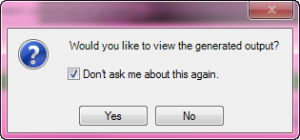
view_generated_output

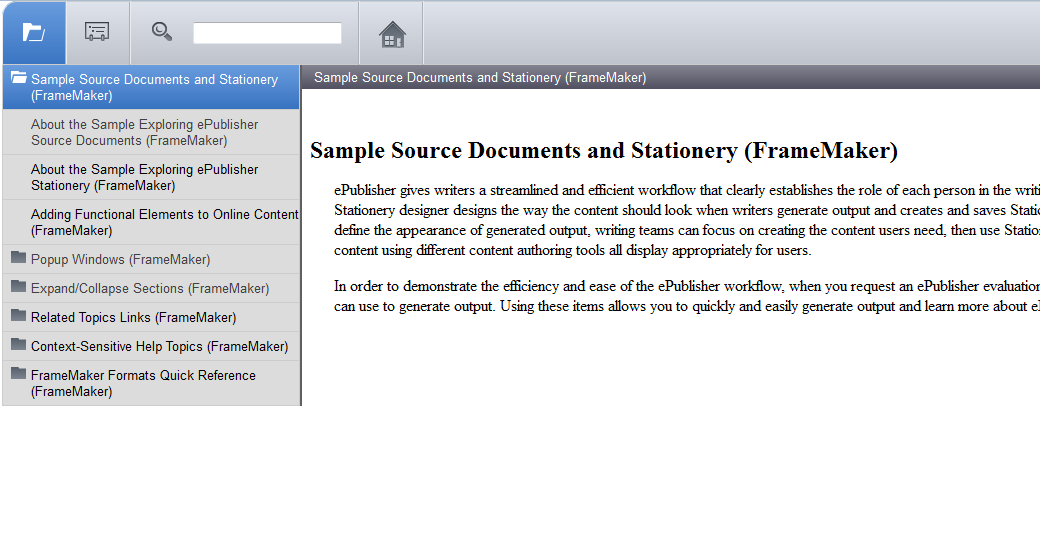
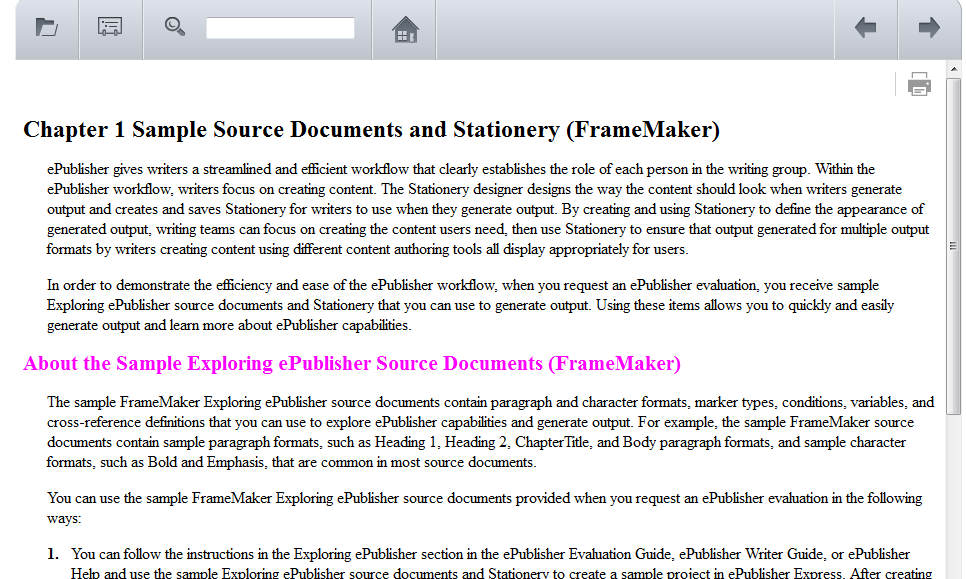
11. Once you click yes you should be able to view the output and it will look like this when you click the right navigation button on the top.
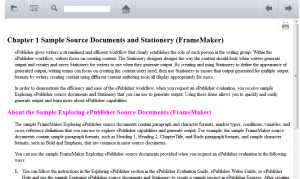
magenta_heading_reverb

12. Click File -> Save to save your project for the next lesson

So, this was a  very basic example of output that is possible from our sample source files. Right now we have navigation in our Reverb output, but we do not have a table of contents, breadcrumbs or any other bells and whistles that Reverb offers. In the following lessons, I will go over how to get cool features and settings in the output, but for now I hope this gives you a good starting point.

Customizing Reverb Skins – The iconic default

Posted on: September 24th, 2013 No Comments

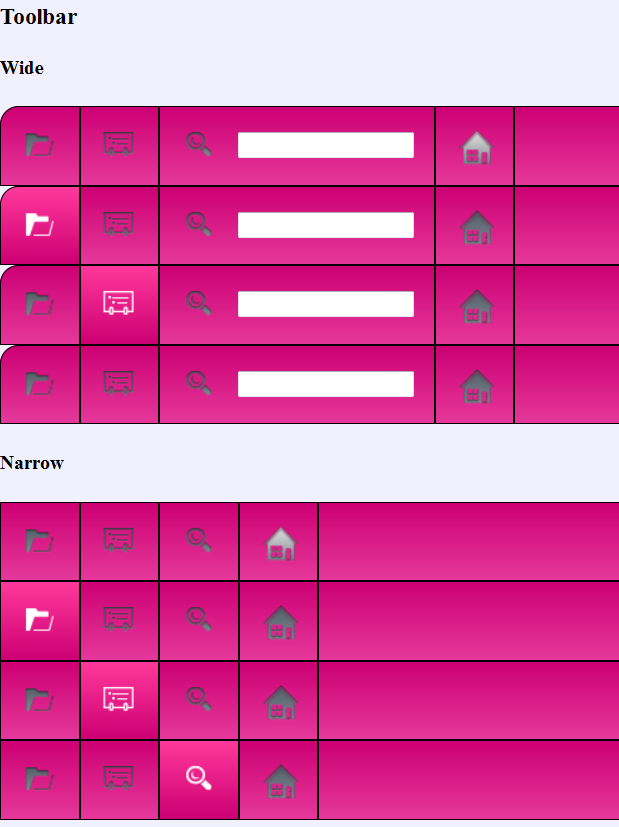
To round out the series of blogs for our reverb customizations, we are going to go back to the default Reverb style. This is the one that most of you are familiar with probably because it has been with us for the longest time, and kudos to anyone who has been customizaing with this since the beginning as well! We are going to focus this week on getting the icons fully customized. For the purposes of this demonstration, we are going to use Fireworks because that is what our customizable icon palette is based from. So, right now we are starting from the customized CSS of the toolbar. As you can see, I have made the gradients a little bit lighter as to contrast that the button is being moused over, but really there are no limits to the colors you can put on the gradients or type of gradients as discussed in my previous post

skin_default

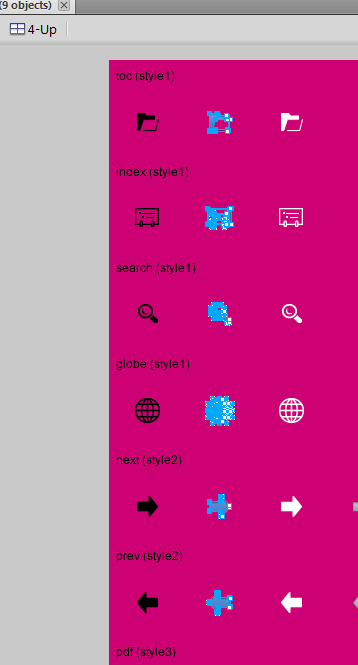
If you were to mouse over these icons in their non-customized state, they would appear a blue color. To fix this, we need to double-click the skin.Fireworks.png under Advanced -> Manage Format Customizations and in the File explorer under Pages -> Images. Now we open this file in Fireworks. Here is a screengrab of how my environment looks in Fireworks:

Fireworks_screen

This background was set manually so that I would have a better idea of how these icons will look with modifications. In Fireworks, I set this by going to Modify -> Canvas  -> Canvas Color and manually put in the CD0074 value after clicking the custom radio button. Alternatively, you can go to Properties and select the transparencies there. Remember if you set this, you will need to set it back to transparent when you are saving as the skin.png.

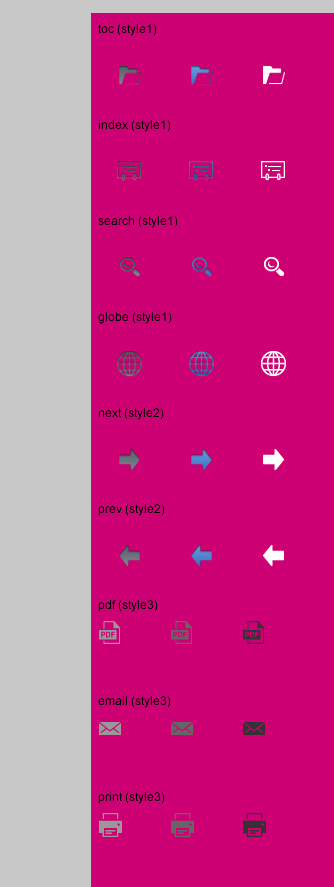
So, now we get to change our icons. We are focusing on the left-hand group as the right-hand group is meant for the compact styles. As a guide to which icons correspond to which behavior, the left-most group is the button unhovered. The middle (by default blue) are the buttons hovered, and the right group is the clicked or selected group. So, let’s get a little crazy and change the normal buttons to black, the hover buttons to neon green and make no changes  to the selected group. While making the changes, you will notices that there is actually a 4th column to the right on the arrows. This is actually to indicate that there there is no more navigation back or forward. For this button, I decide to make it a faded pink to go along with my theme. I personally use the brightness/contrast, or the hue/saturation controls to adjust the colors and do a multiple select so that it gets applied to all the icons evenly:

multiple_select

Now, you go back to the transparent background, and then save as the skin.png (which will overwrite your default, so say OK when it asks you to) and then you you can refresh the Skin.html window and your newly changed icons will be visible:

new_icons

There are a few more customizations I could do in this project, but I hope you get a good idea through CSS and the image modification of what I can do. For further reading on how we used one image to create the background for the whole menubar and TOC, you can refer to CSS and sprites here, here and here. Files are uploaded to the Wiki Page so you can test with this yourself (all files are in the 2013.1 version)

Creating Custom Skins with Reverb, an adventure!

Posted on: August 16th, 2013 1 Comment

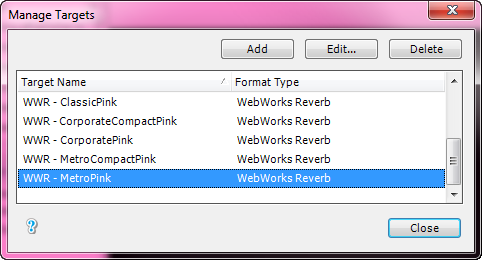
As you may or may not know, I am all about anything pink, so I decided to customize the new WebWorks Reverb skins to add each of them to be pink! Using these instructions, I began my quest to get Hello Kitty-esque themes in my project. The first and perhaps most important step in getting your custom themes created is to create different targets in the project so that the customized CSS will have a place to live:

managing_targets_pink_targets

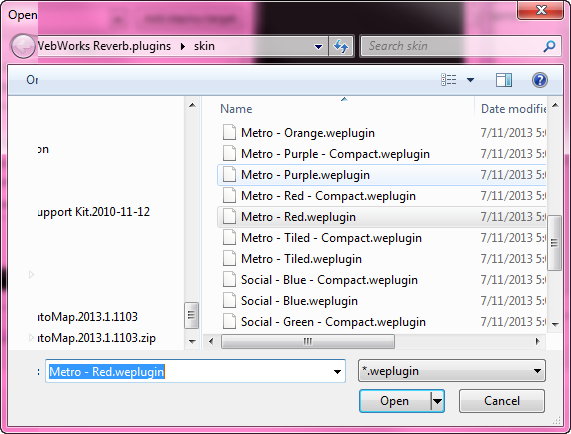
If you are not familiar with how to add Targets, refer to this documentation on the subject. Here is also a refresher on what I am referring to when we talk about targets (versus output Formats in your project). So once we have these created in ePublisher Designer( in creating customizations like this you will need to use Designer not Express).  You will need to select the desired theme to customize  in the Target Settings, by going to Target -> Target Settings -> WebWorks Reverb -> Skin.  This will bring up a popup window that lets you select the plugin file and for the highlighted Target “WWR – MetroPink”, for example, I am chosing the WebWorks Metro Red, just because it is close to pink, but you can choose anyone you want:

selecting_skin_metro_red

Now at this point, most would start going to the CSS customizations, but for the purposes of this demonstration, we are going to continue to select the different Targets and assign different skins to them. There are 36 different color combinations, but for the purpose of the demonstration I will upload the main 4 different skins: Metro, Classic, Corporate, and Social, which doubles when you consider the compact versions of these.

(more…)

Intermittent Issues

Posted on: May 3rd, 2011 No Comments

These are always a challenge. What can make things occur at one time and not the other, and more importantly yet more confusingly why? There does not seem to be an online guide that can instruct someone on any product how to go about troubleshooting for an issue that happens sporadically.  My guess is that these happen mostly at the software level. (Don’t worry:  Engineering and Development. We still like you).  So, in my role, the process of investigation begins. In researching this subject, I realize that in the world of Software Support, that in addition to taking a mechanic’s role, we often take a bit of an investigative role.  I don’t usually have a specific order of questions, but one could say it is a 4W (minus the “Who”, because it is obviously happening to you) approach.  So, let’s begin with “Where”.  The accompanying question to where would be to be able to isolate it to where it occurs, and does this occur on just one or more systems.

Next we follow up with “When”. Inspecting the log becomes essential at this point. On the log screen you will see various stages of output generation.  Let’s say that you run across issues during the Image pipeline. If your inconsistent errors are consistently happening at the Image pipeline, most likely there is something going on with the graphic generation, which leads into the “What” question. So, in our example we determined that it happens at the graphic pipeline.  So, what aspect of the graphics are we trying to isolate? Is it an issue with the Rasterizer? These are things that can be tested by using by-reference images in your input.  Once you determine what is the cause of the graphic culprit, you can begin to ask the final question, “Why?”.  These can be as simple as needing to close a dialog box, however if you cannot figure out why it occurs, then chances are you will not be able to resolve this.  Sometimes, you might get lucky and the issue goes away, but we want a better success rate than chance.

Ultimately, the goal in Support is being able to reproduce and isolate issues. Given system specific issues, isolating is an absolute must.  How can we fix something that we know nothing about? If you have submitted a case, and it seems like we are asking many questions, there is a reason for it, and the reason is that we are trying to help you as quickly as possible.  Also, feel to share any troubleshooting insights that you have.

Installation Frustrations

Posted on: April 13th, 2011 2 Comments

These can happen any time, whether it is the dreaded “Object reference not set to an instance of an object” or your project encountered a problem and needs to close. They aren’t the greatest and can cause hours of issues.  The first thing that Support personnel usually think of to resolve an issue is to reinstall the software. This, unfortunately rarely works for Mac or Windows programs. I find myself getting into the trap of even trying  cleaning the registry which seems to be in the same camp of doesn’t do much.  I find that taking a scalpel to the unneeded junk in your system is the best way to get rid of the error.  It sounds scarey, but what you are getting rid of is temporary files will do the trick.  Recently, I was having difficulty opening any project due to this error:

(more…)

This blog is protected by Dave\'s Spam Karma 2: 14087 Spams eaten and counting...